Create new SBOM project
CAST SBOM Manager is a powerful tool for managing the lifecycle of Software Bills of Materials (SBOMs).
This guide walks you through the process of creating a new SBOM project in CAST SBOM Manager, using a simple and practical example: scanning a local software project for Maven dependencies.
Looking for detailed documentation?
This is a beginner-friendly quick start tutorial. For comprehensive documentation of all wizard options, see the SBOM Creation Wizard Reference.
Introduction
While SBOM Manager supports a wide range of sources and advanced scanning capabilities, this tutorial focuses on the most basic use case to help you get started quickly. You’ll learn how to:
- Create a new SBOM project
- Import source code from the local filesystem
- Configure Maven scanning
- Understand the impact of scanner options on the SBOM output
This tutorial is ideal for first-time users who want to generate a clean, minimal SBOM and understand the fundamentals of scanner configuration. More advanced features—such as OSS component detection, license management, and catalog enrichment—will be covered in future guides.
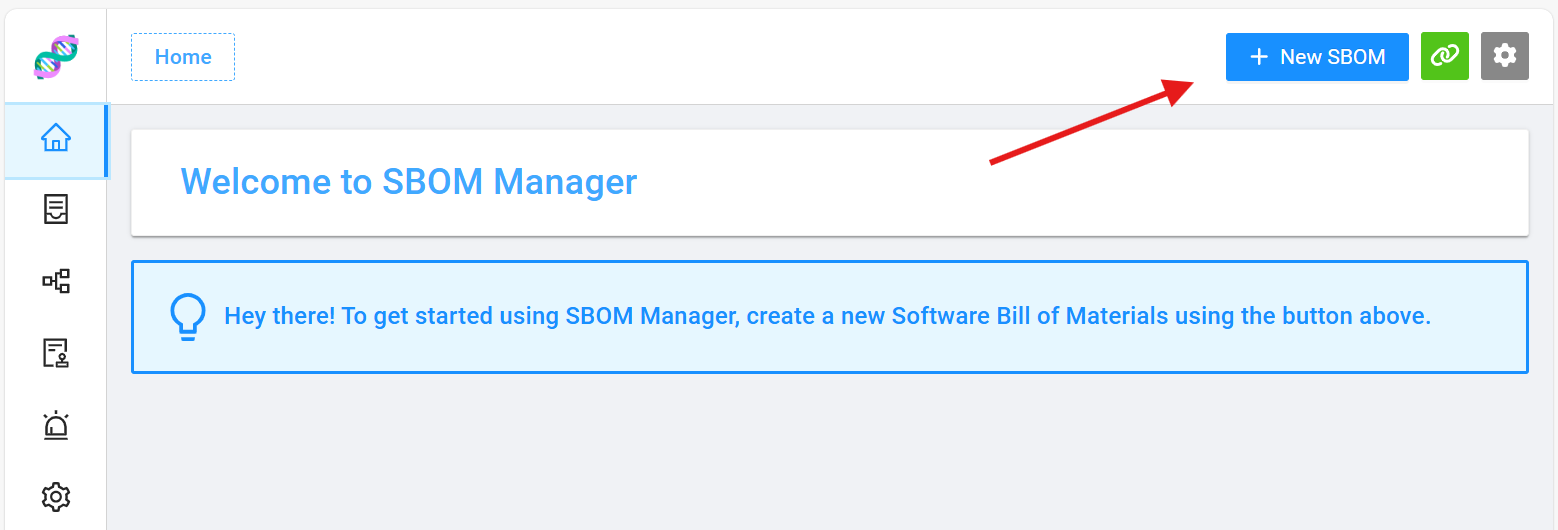 To start a new project, click the + New SBOM button located at the top right of the menu. This opens the Project Creation Wizard, which we’ll go through step by step.
1. Details
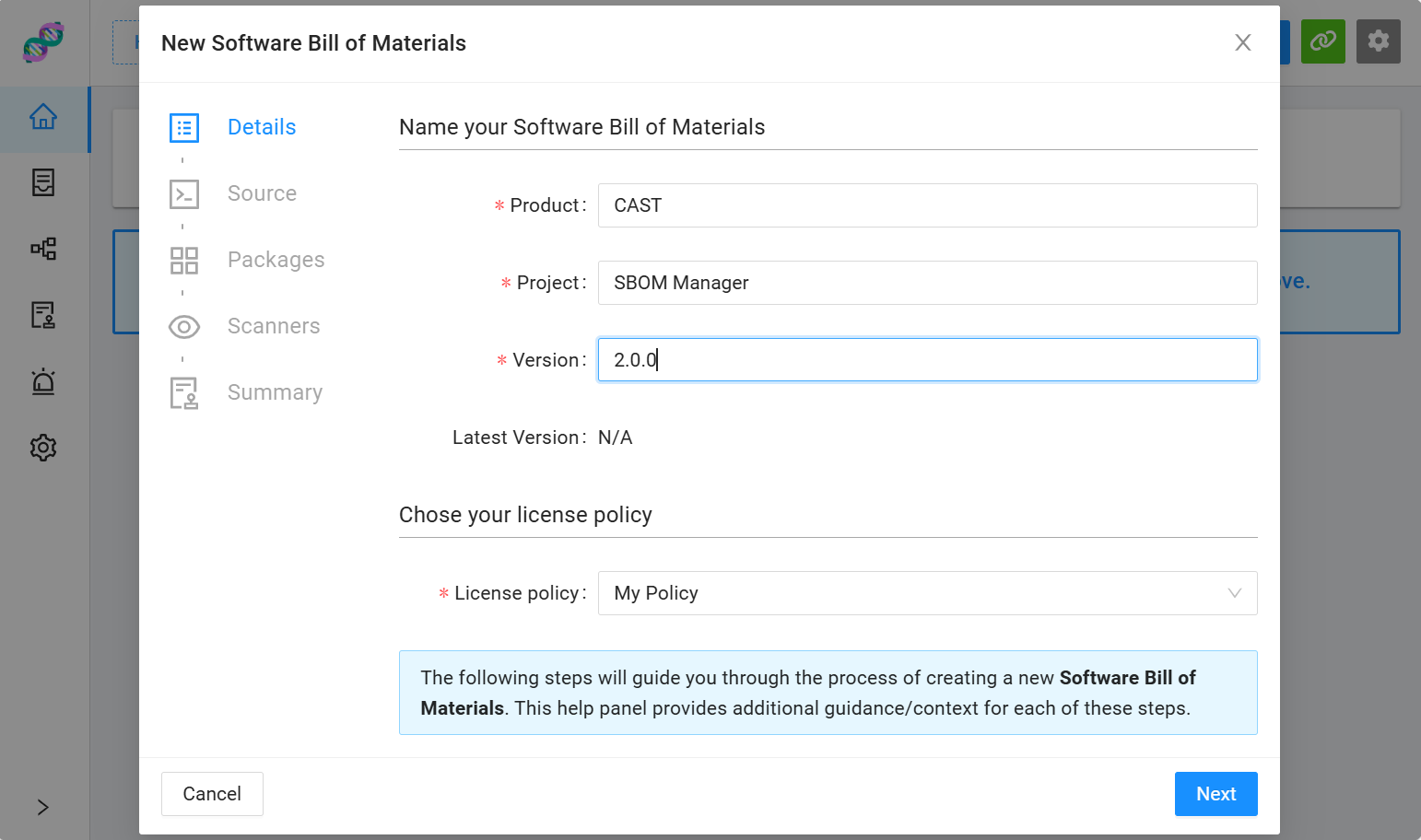 The Details section is straightforward. Here, you can name your SBOM project and specify the license for the SBOMs you'll generate and export later. Learn more.
2. Source
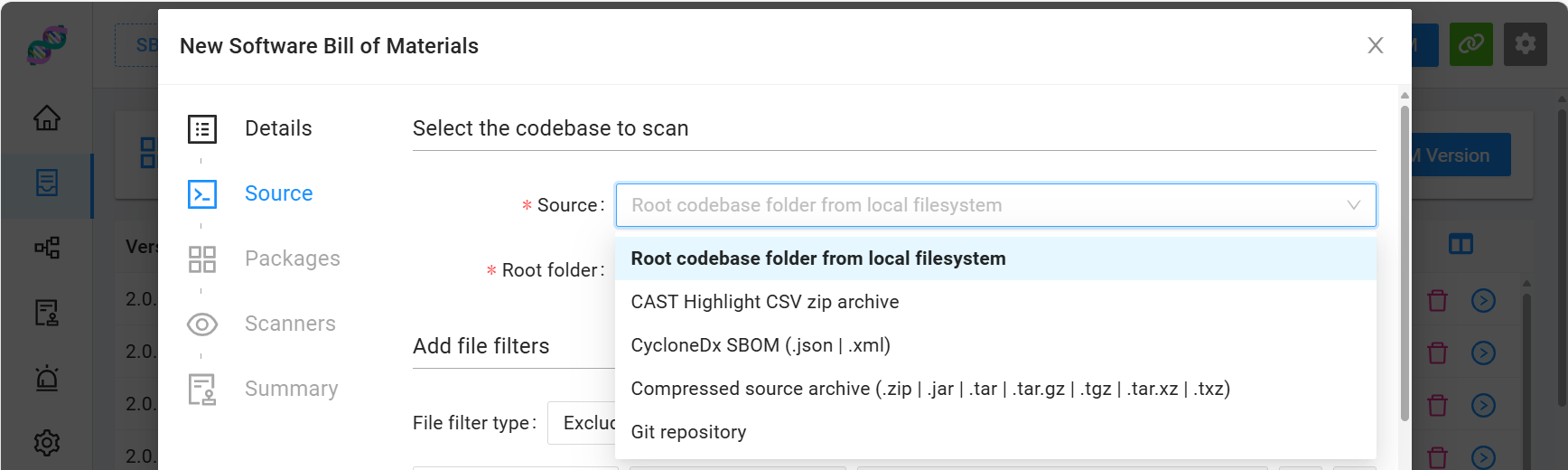 SBOM Manager allows you to create a project from a number of sources. We will import a software project from the local filesystem. The project we'll import is the SBOM Manager's own codebase. This step also includes an option to add file filters. Filters allow you to fine-tune the directories or file extensions processed during import. We won't use filters now, as we're only scanning for Maven dependencies. Learn more.
3. Packages
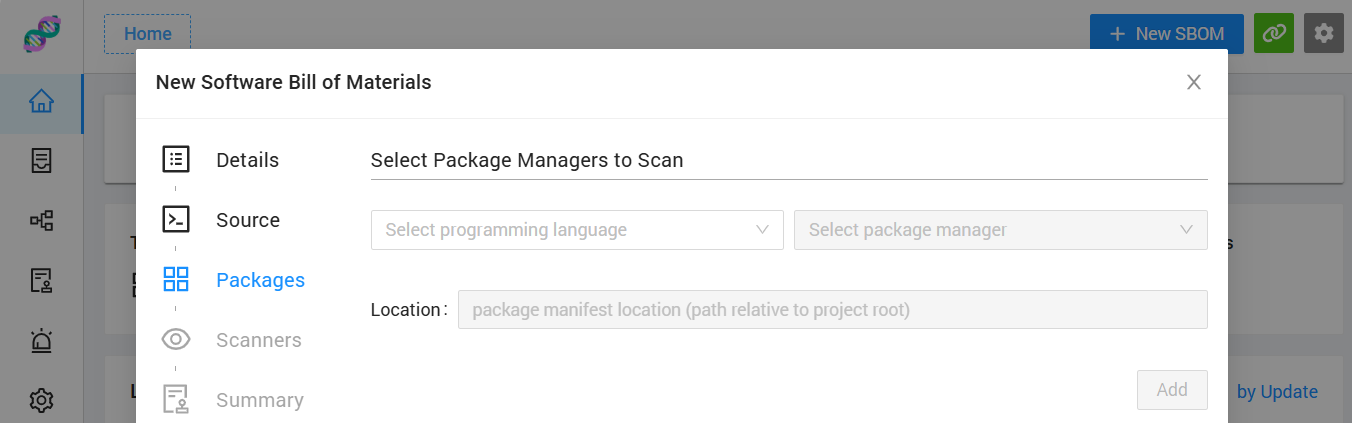 Checking Enable Maven scanner is the simplest way to add a project. SBOM Manager will use the
 pom.xml file located at the root of the project. It will identify and add declared Maven dependencies as components in your SBOM Project. Learn more.
4. Scanners
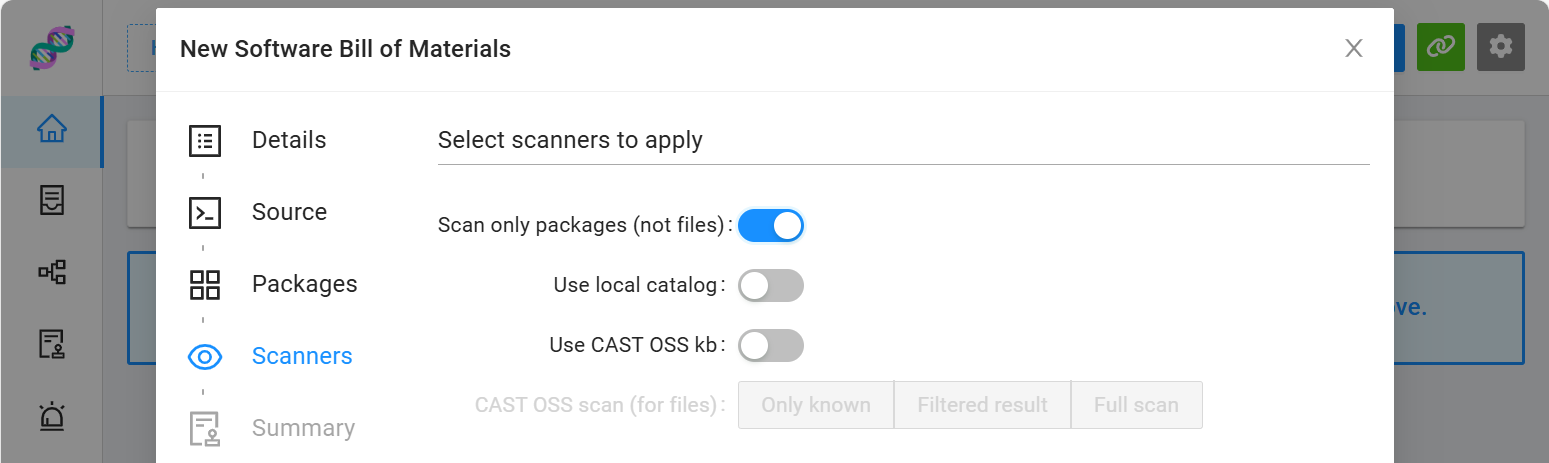 The Scanners feature is one of SBOM Manager's most powerful capabilities. It allows you to scan files using the CAST Open Source Software Knowledge Base. This will match existing files against signatures of files in open source projects.
However, for this basic project, we won't use the OSS Knowledge Base. Instead, select Scan only packages (not files). While we won't benefit from the full power of the knowledge base, this configuration still provides a solid starting point for managing components. Learn more.
5. Summary
The last step of SBOM Project creation is the Summary. Review your configuration and click Finish to launch the project creation. Learn more.
Results
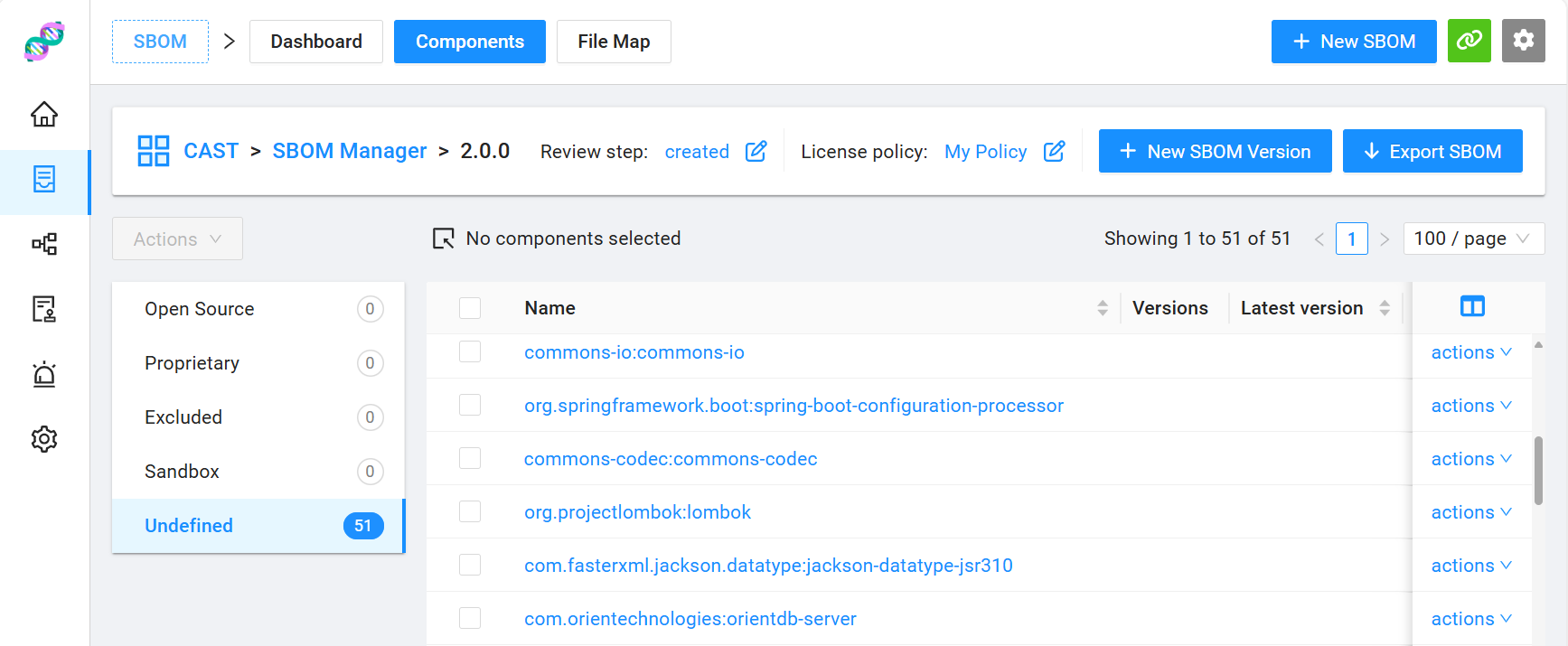 We’ve successfully created our first SBOM project. You can find it in the left-side menu under SBOMs. The list of components is based on the dependencies declared in the root
 pom.xml file. At this stage all the components are classified as Undefined.
Conclusion
Even at this point you could export the SBOM in CycloneDX or other supported formats. However, the value of SBOM Manager lies in its ability to enhance this data. For example, you could:
- Use the CAST OSS Knowledge Base during project creation to automatically detect open-source components.
- Manage component versions and track obsolescence.

- Assign and manage licenses for specific components.
- Manage proprietary components
- Modify component metadata and save it to SBOM Manager’s Catalog, allowing the tool to retain component information across future scans.
This makes SBOMs more accurate, complete and overall useful. In future guides, we’ll show you how to enrich your SBOMs, manage component metadata, and integrate SBOM Manager into your development workflow.