Step 4: Scanners
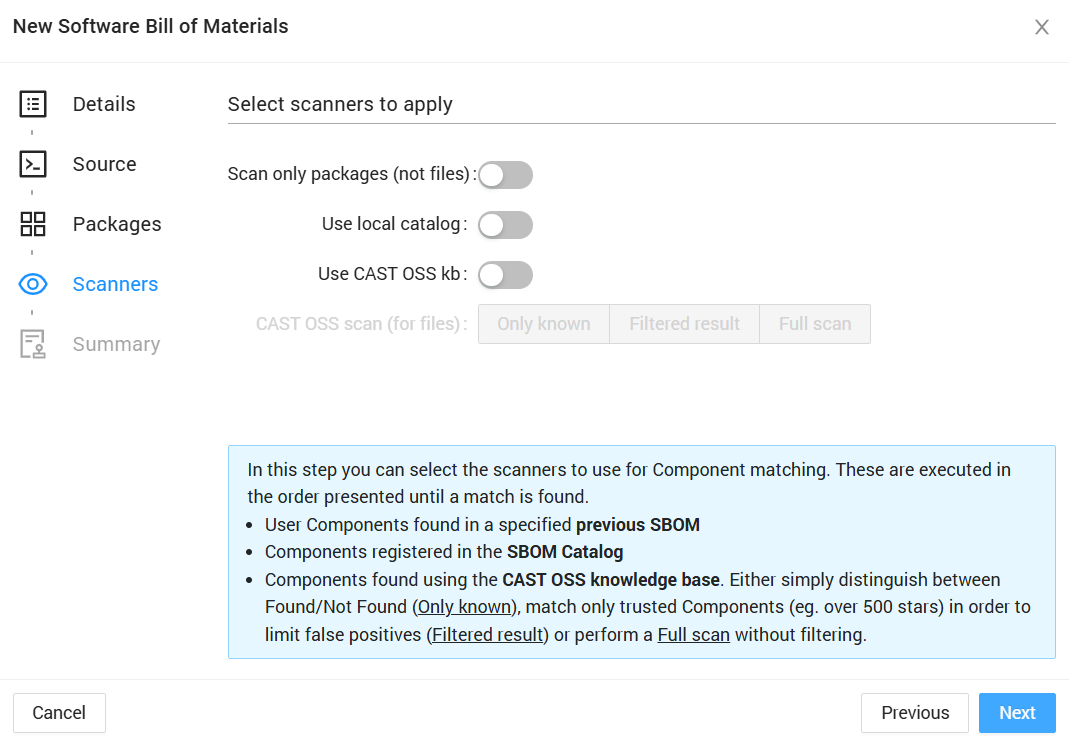
The Scanners step configures how SBOM Manager identifies and enriches components. Multiple scanners can be enabled and work in priority order until a match is found.
Scanner Options
Scan only packages (not files)
Toggle: Enable to skip file-level scanning and only process package manifest files.
When enabled:
- Only declared dependencies from package managers are imported
- Individual source files are not analyzed
- Faster project creation
- Lower storage requirements
When disabled (default):
- Both package manifests and individual files are scanned
- Discovers undeclared open source components
- Complete component inventory
TIP
For production SBOMs, keep this disabled to detect all open source usage, including copy-pasted code and embedded libraries not declared in manifests.
Use previous SBOM
Toggle: Reuse component identifications from a previous version of this project.
Configuration:
- Select which previous version to use as reference
- Only available when creating a new version of an existing project
Benefits:
- Faster scanning by reusing known components
- Maintains consistency across versions
- First scanner in the priority order
Use local catalog
Toggle: Match components against your organization's local catalog.
The local catalog contains components you've previously identified and approved. This scanner checks files against your catalog before querying external knowledge bases.
Benefits:
- Organization-specific component database
- Second scanner in the priority order
- Faster matching for known components
Use CAST OSS Knowledge Base
Toggle: Enable matching against the CAST Open Source Software Knowledge Base.
When enabled, choose one of three scan modes:
Only known
- Distinguishes between Found/Not Found
- Fastest scanning mode
- Basic component identification
Filtered result
- Matches only trusted components (e.g., over 500 stars)
- Reduces false positives
- Balanced accuracy and performance
Full scan
- Performs comprehensive scanning without filtering
- Most thorough component identification
- Highest accuracy, longer processing time
- Recommended for production SBOMs
WARNING
The "CAST OSS scan" options are only available when:
- "Use CAST OSS kb" is enabled
- "Scan only packages (not files)" is disabled
- Your instance is connected to CAST OSS Knowledge Base
Scanner Priority Order
Scanners execute in the following order until a match is found:
- Previous SBOM (if enabled) - Check components from previous version
- Local Catalog (if enabled) - Check organization's component database
- CAST OSS Knowledge Base (if enabled) - Query the CAST OSS knowledge base
This cascade approach optimizes performance while ensuring accurate component identification.
Processing Time
Scanning time varies based on:
- Project size - Number of files and total file size
- Scan only packages - Faster when enabled, less comprehensive
- Enabled scanners - More scanners increase processing time
- CAST OSS scan mode - Full scan takes longer than filtered or only known
- System resources - Available CPU and memory
Monitoring Progress
A progress dialog appears showing scanning phases and completion percentage. You can close this dialog and navigate away - processing continues in the background. Click the "Scanning SBOM" button (where "+ New SBOM" normally appears) to reopen the progress dialog. Large projects may take several minutes to complete.
Recommended Configuration
For production SBOMs:
- Scan only packages: Disabled (scan both files and packages)
- Use previous SBOM: Enabled (if creating a new version)
- Use local catalog: Enabled (if you maintain a catalog)
- Use CAST OSS kb: Enabled with Full scan mode
For quick analysis:
- Scan only packages: Enabled
- Use CAST OSS kb: Enabled with Only known mode
Click Next to review your configuration.