Step 2: Source
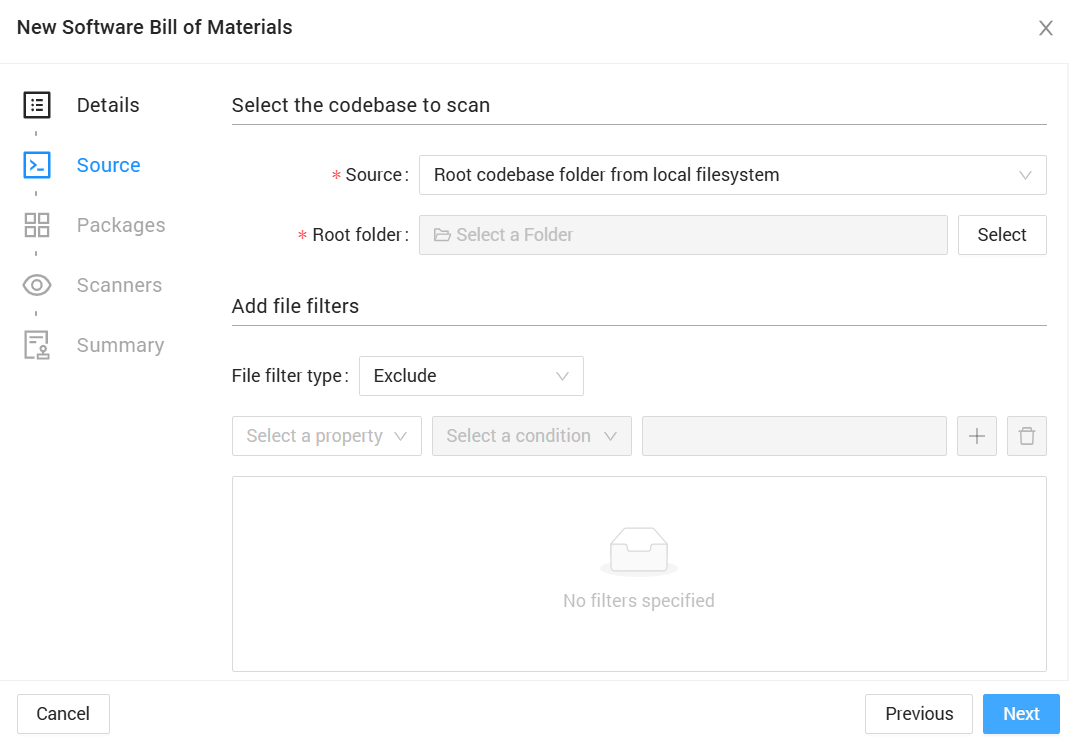
The Source step defines where SBOM Manager will import your project files from.
Source Types
CAST SBOM Manager supports multiple source types:
Local Filesystem
Import a project directly from your local machine or network drive.
Configuration:
- Source Path - Browse or enter the directory path containing your project
- Include subfolders - Recursively scan all subdirectories
- Best for: Local development, testing, proof-of-concept projects
Git Repository
Clone and import directly from a Git repository.
Configuration:
- Repository URL - HTTPS or SSH Git URL
- Branch - Specific branch to clone (default: main/master)
- Credentials - Authentication if required
- Best for: Automated scanning, CI/CD integration, remote repositories
Archive Upload
Upload a compressed archive file containing your project.
Configuration:
- File Upload - Select ZIP, TAR, TAR.GZ, or other supported archive formats
- Extract Path - Root directory within the archive to use
- Best for: Scanning versioned releases, third-party components, offline scenarios
CycloneDX SBOM Import
Import an existing SBOM in CycloneDX format.
Configuration:
- File Upload - Select CycloneDX JSON (.json) or XML (.xml) file
- Directly imports components, licenses, and vulnerabilities
- No scanning required - data is imported as-is
- Best for: Importing SBOMs from other tools, consolidating multiple SBOMs, migrating data
TIP
When importing CycloneDX SBOMs, the Packages and Scanners steps are skipped since component data already exists in the SBOM.
CAST Highlight CSV Import
Import SBOM data from CAST Highlight analysis results.
Configuration:
- File Upload - Select ZIP archive containing Highlight CSV files
- Imports components and frameworks detected by Highlight
- Maps framework detections to components
- Best for: Organizations using CAST Highlight for code analysis
INFO
Highlight CSV import expects specific CSV formats from CAST Highlight. The Packages step is skipped for this source type.
File Filters
File filters allow you to include or exclude specific files and directories during import.
Include Filters
- Specify which files or directories to include
- Supports wildcards and glob patterns
- Example:
*.java,src/**/*.py,lib/
Exclude Filters
- Specify which files or directories to exclude
- Commonly used to skip build artifacts, dependencies, test files
- Example:
node_modules/,target/,*.test.js,.git/
When to Use Filters
- Large projects: Exclude build artifacts and dependencies to reduce scan time
- Monorepos: Include only specific modules or services
- Package scanning only: If only scanning package manifests, exclude source code directories
- Mixed projects: Filter to specific language directories
WARNING
Filters affect both file scanning and package manifest detection. Excluding a directory will prevent SBOM Manager from finding package files within it.
Click Next to proceed to package scanner configuration.